[cover: Star of the Morning, painting by Nicholas Roerich, 1932.]
The GREAT INVOCATION Community
The establishment of genuine, harmonious right human relations has never been as urgent in human history as it is today. There are no alternative solutions capable of resolving the profound problems of our time, which stem from the clash between the “new” that bursts forth to emerge and the “old” that strenuously tries to hinder its progress. Beyond appearances, the true challenge facing humanity is the advancement of its own consciousness—a necessary step toward approaching the threshold that leads to the discovery of “new knowledge.” Never before has this goal seemed so within reach! It is in this context that the most sensitive men and women, capable of sensing the breath of change, find a precious opportunity in the initiative proposed by this App. The daily and shared use of the Great Invocation can serve as a powerful lever to channel collective efforts toward the construction of a new temple for human life, guiding them in the right direction.
Tips for Group Action
- If possible, just before 12:00 PM, withdraw for a few minutes to a place where you can arrange yourself comfortably. Otherwise, use your ability to abstract yourself while remaining physically aware of your surroundings.
- If you prefer and if possible, you can also recite the Great Invocation out loud or in a whisper.
- Before you begin, spend a few seconds to regulate breathing and establishing inner alignment. Try to elevate vibration as high as may be.
- Then, mentally connect with members of the Community of your geographical area who, like you, are performing the same steps at that moment.
- After having taken our place in the Community, we begin to recite together the Great Invocation, imagining that the joined voices generate a powerful and luminous choral sound.
- We give life to the words of the stanzas as we recite them; we visualize what we are evoking using our creative imagination.
- At the end of each stanza, we take a short break before moving on to the next stanza.
- At the end, we close the Great Invocation by intoning OM three times, as we send our thoughts of light and love to all beings and creatures of the Earth.
- In conclusion, we send our respectful regards to the Masters of the Spiritual Hierarchy and afterwards to all sisters and brothers of the Community who are in the world.
App Instructions
1. 3D Map of the Earth.
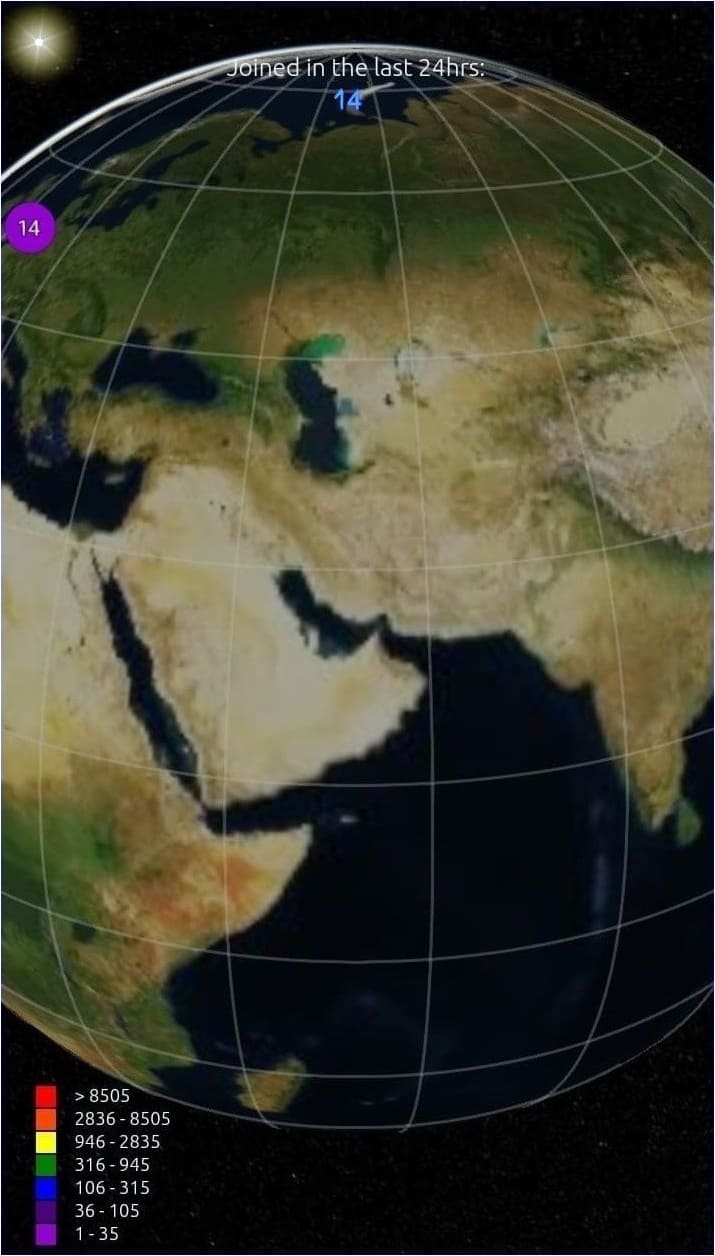
When the App is opened, the surface of the Earth that is facing the Sun at that time is displayed. The gold-colored line in the center indicates the meridian of natural solar noon. The surface to the right of the line is the one that, with the turning of the Earth, has been exposed to the Sun most recently, while the one to the left will be next. The total exposed at the top indicates the number of Joins made by the Community in the last 24 hours. Rotating the Earth to the left, with a full turn will display the placeholders of all Joins, starting with the most recents.
2. Geographic Grid System & Placeholders.
1st level:
To visualize the partecipation of the Community on the Earth's surface, is employ a geographical grid system composed of 288 cells, formed by intersection of 24 meridians and 12 parallels. Each cell's placeholder, situated at its center, displays the total number of Joins made within its geographical area. Depending on the total count, the placeholder may assume different colors. (A reference table is exposed in lower-left corner.)
2nd level:
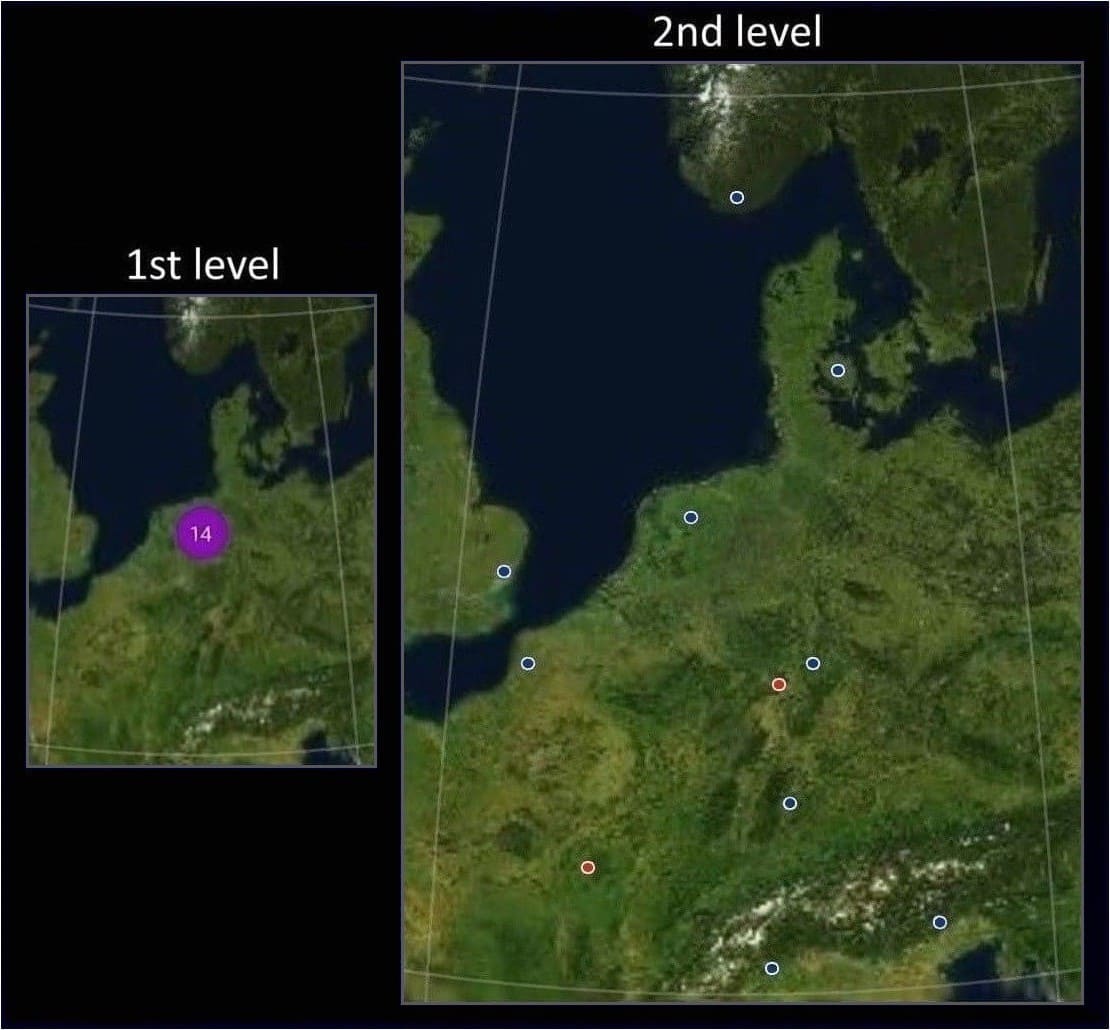
To examine individual Joins in detail, zoom in on the specific area of interest until the cell placeholder disappears to be repplaced by the individual placeholders indicating the precise geographic locations from which the Joins originated.
3. How to Make the Join.
To participate one must press "Join", the button located at the bottom of the Earth page. The button becomes active at 12:00 PM, and may be used within the next 12 hours (in case a network connection is not available after reciting the Great Invocation.)
To the right of the button is the option to select the number of participants (up to a maximum of 7) for a group. In this case, the placeholder's color displayed will be red to differentiate it from blue, the color assigned to the default Join for a single person.
4. Buttons.

- a. Extracts From Spiritual Teachings ► Viewing articles (item 6);
- b. Refresh ► The page is updated;
- c. Geographic grid ► Enables or disables the display;
- d. Join ► Execution request;
- e. No. ► Number of participants of the Join;
- f. Viewfinder ► Display your own placeholder yellow-colored.
5. Set Reminder.
Pressing the button  at the top right of the Menu page, you can set a desired time to activate an automatic notification when the time is close to 12:00 PM.
Note:
In countries that observe daylight saving time, one must remember to adjust the time on the day the change occurs.
6. Extracts From Spiritual Teachings.
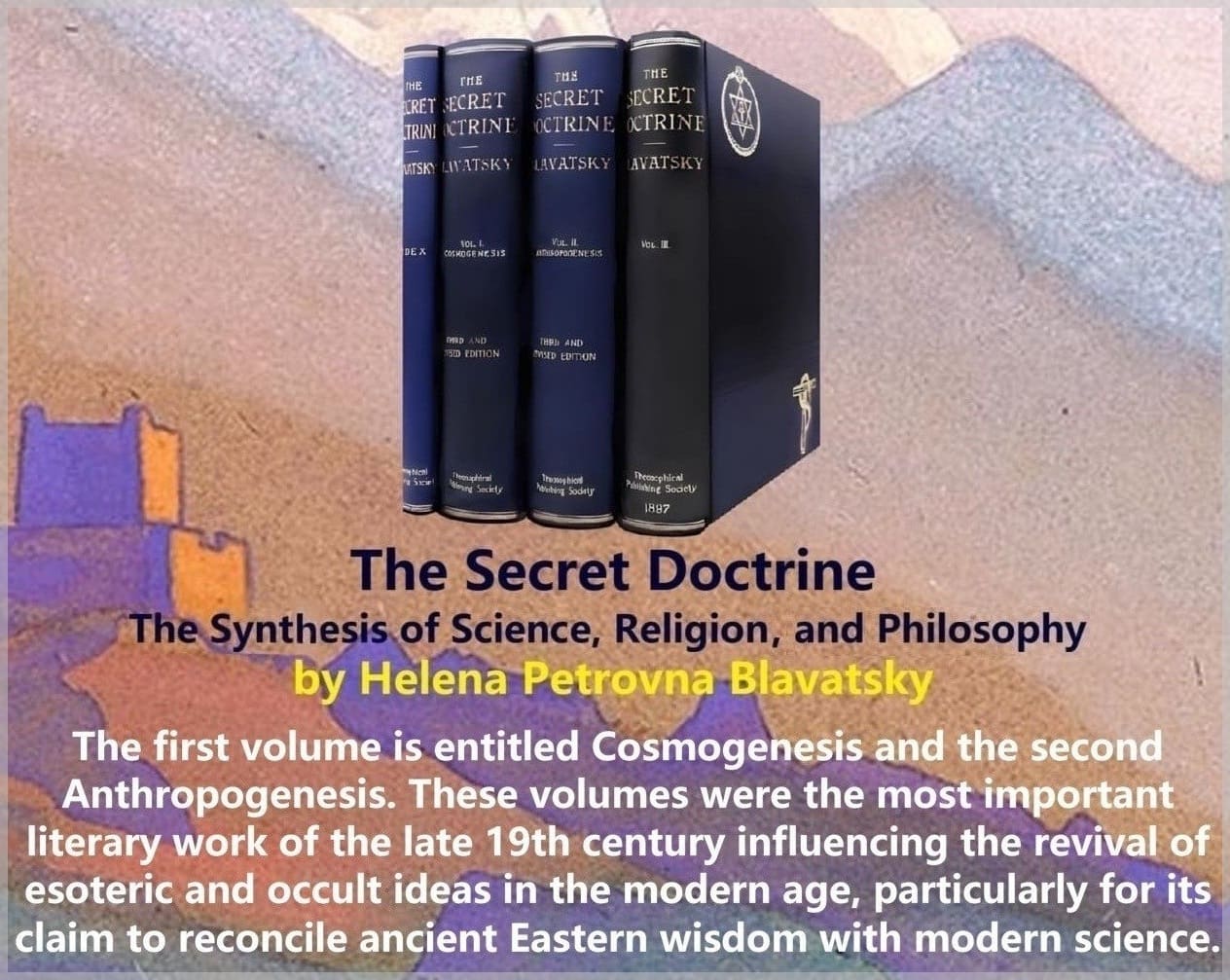
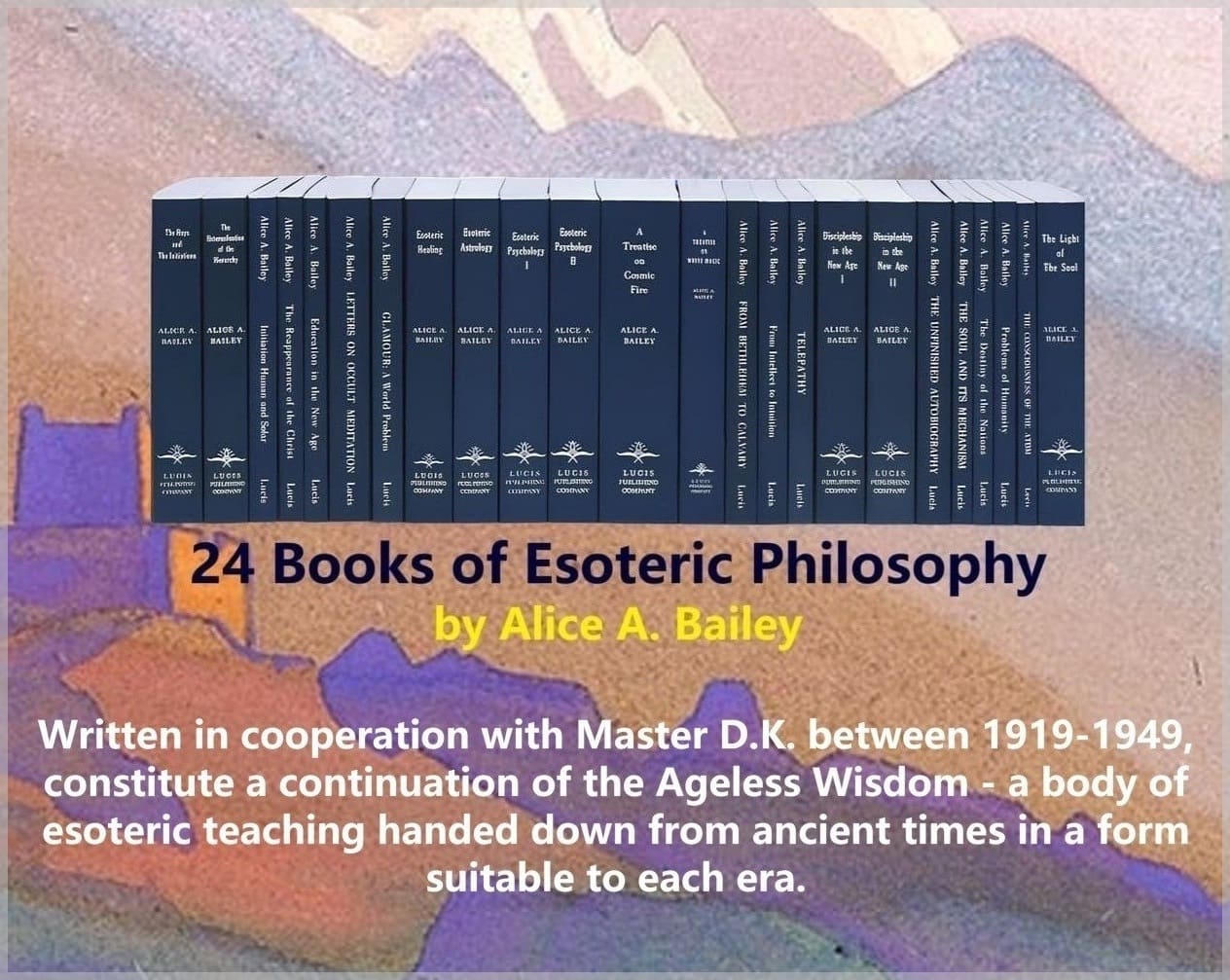
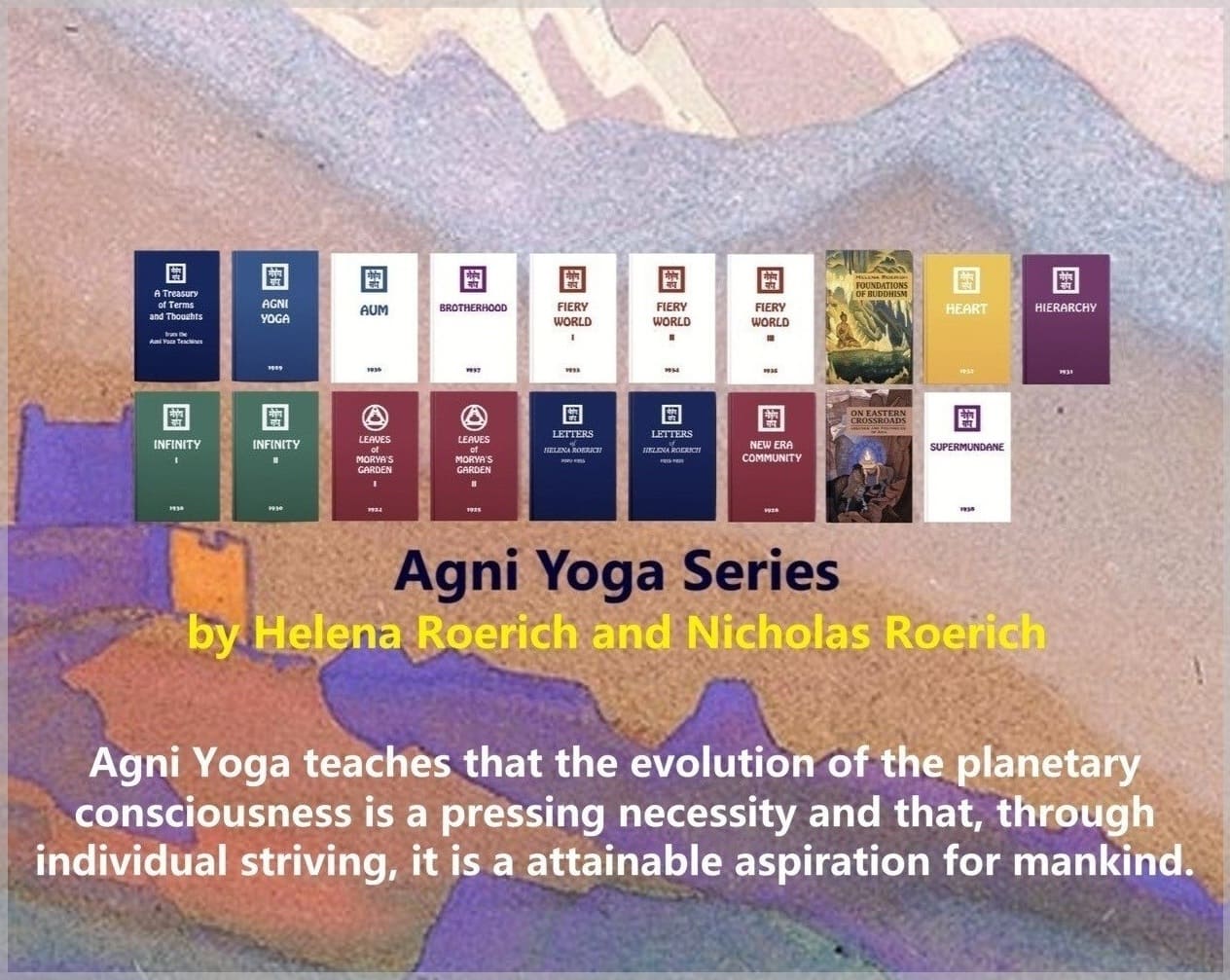
From Earth page:
This button provides access to articles in esoteric philosophy and yoga, sorted by publication date from the most recent. Each page can displays the covers of twelve articles. Beneath each cover image is a description of the topic covered, followed by the title of the article. Clicking on the title directs you to the text. The number array at the top allows navigation through the cover pages. To return to the Earth page, you can either scroll down the current page or use the X icon at the top. A red dot on the button indicates that a new article was published within the last week.
From Menu page:
On this page, however, you can browse articles divided by topic through the submenu Extracts From Spiritual Teachings. For each topic, the articles are sorted by publication date, starting with the most recent.
In addition, for articles extracted from the books of the Lucis Trust and the Agni Yoga Society, a link has been envisaged to allow the reader to continue reading free of charge online on their respective websites.
Note:
The articles have been copied in full from the original English-language publications. For any transcription errors found, please contact us at the following e-mail address: contactus@luxoclock.org. — Thank you!
7. Download.
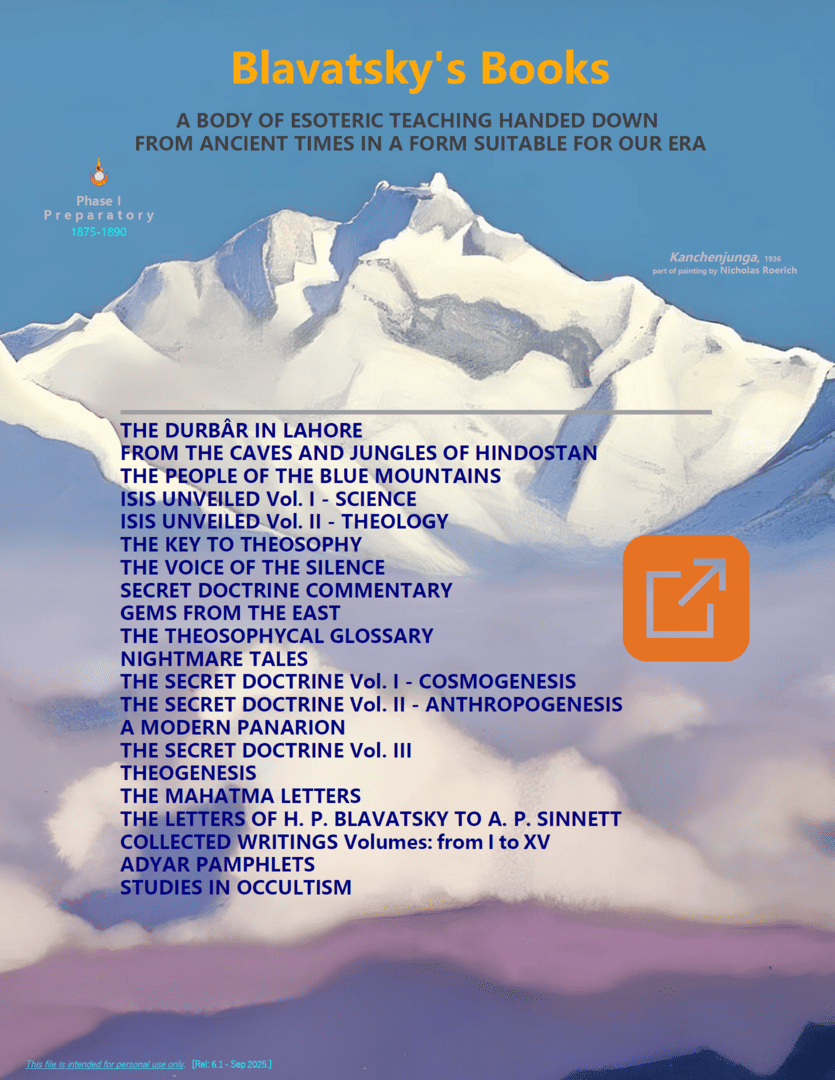
For the benefit of students of esoteric philosophy, this section allows them to download the works of H.P. Blavatsky and A.A. Bailey, each compiled into a single PDF file. This format makes it easier to search for specific words or phrases, allowing for the complete collection of study materials on a given topic.
| Blavatsky file (88.0 MB) |
 |
| Bailey file (38.7 MB) |
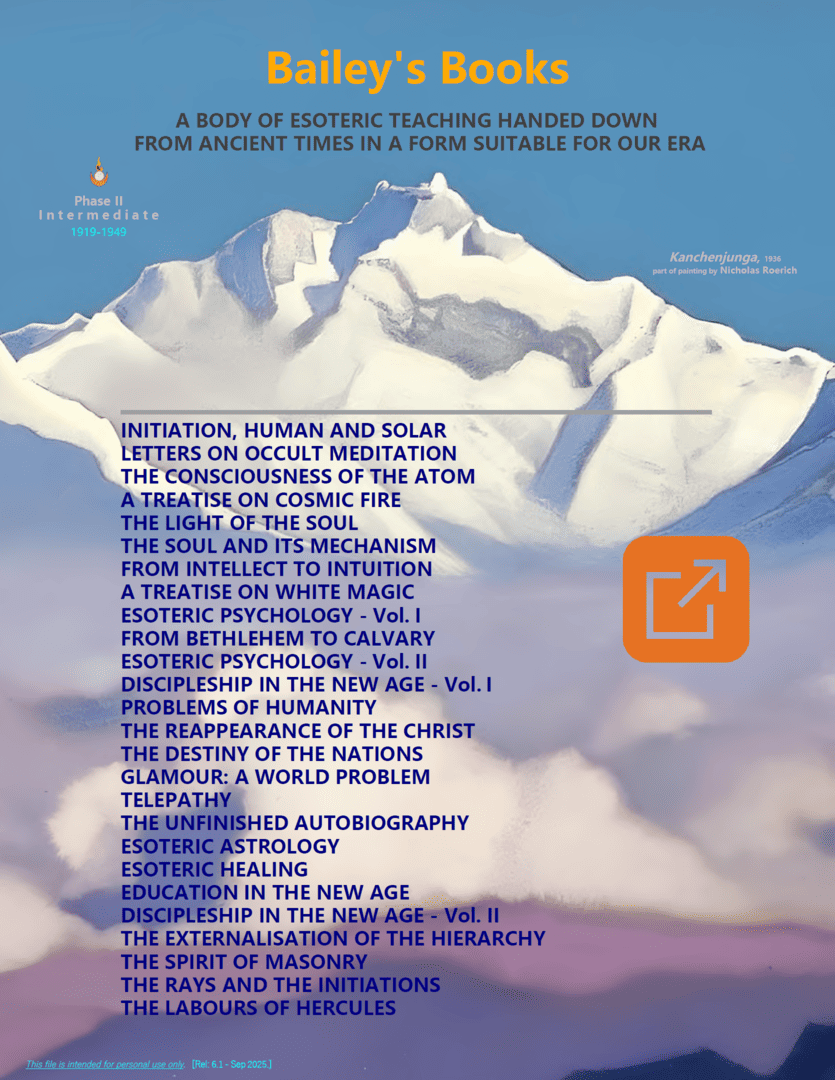 |
After clicking on the image of the file you want to download, wait a few seconds for the Drive page to load.
Then tap the button  and select the ‘Download’ option.
The files are intended for personal use only.
8. Translation.
Full text:
Pressing the button  above the title within the article, the full text is reproduced on a new page by the smartphone's default browser. To activate the automatic translation from English into one's own language this must be set in the browser options. In the example below the Chrome browser was used and the language chosen for the translation was traditional Chinese.
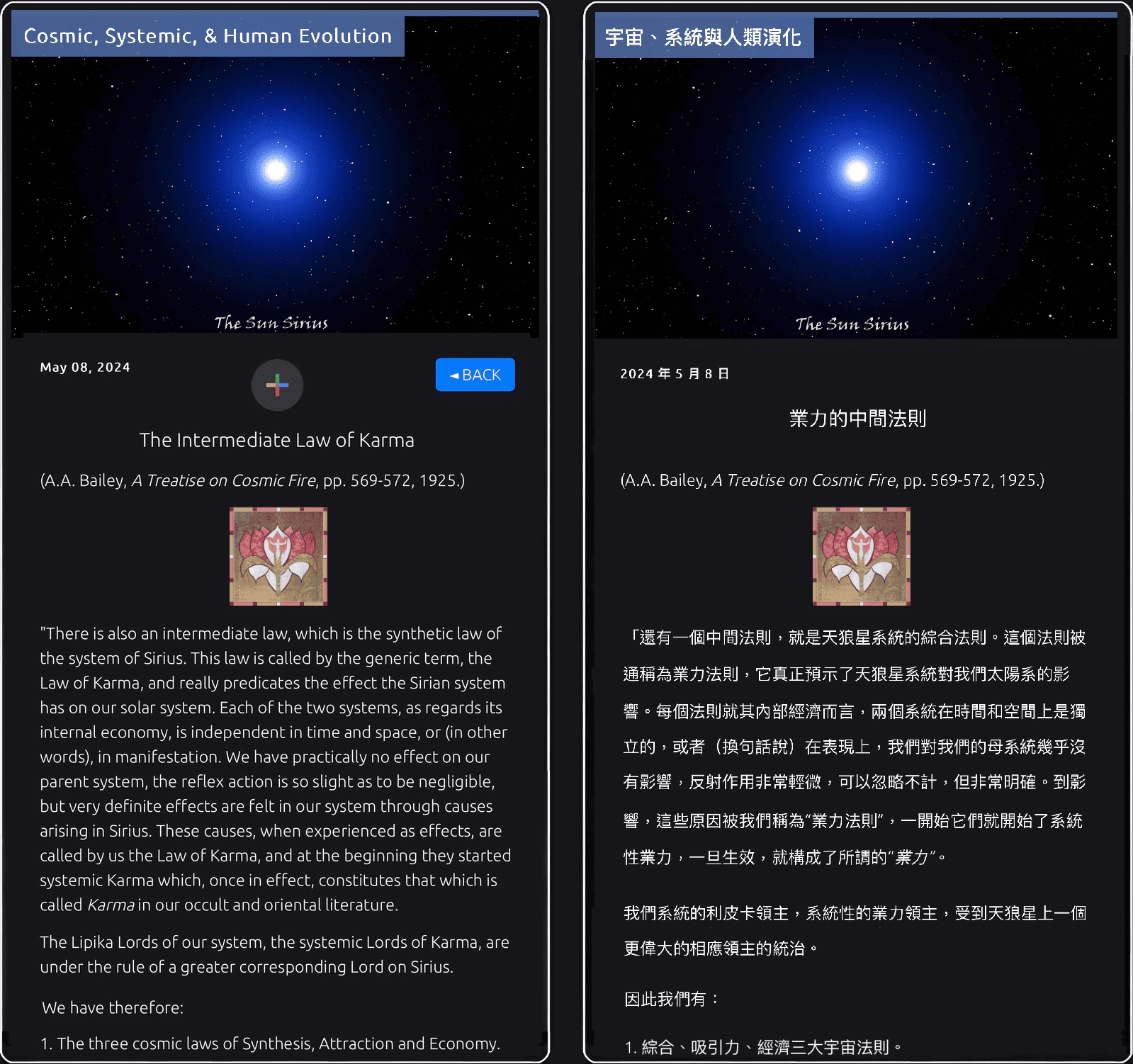
Instructions for setting up the translator: 
Note:
In addition to translation, web visualization allows you to take advantage of its many functions, such as horizontal display, light/dark mode, font size, zoom, search, etc.
Parzial text:
By selecting the text to be translated and pressing the Translate button, the translated page is displayed. To activate this featue an translation App must be present on the smartphone. In the example below, the free version of Deepl was used and the language chosen for the translation was Italian.

Note:
If available, please refer to the published text in your own language for a more accurate understanding.
9. Backgroud Music.
Pressing the button  at top of the article, a playlist of music tracks to listen to in the background while reading is proposed.
Final note:
In case of App malfunctions, please report them by contacting us at the following e-mail address: contactus@luxoclock.org. We will to solve it as soon as possible. — Thank you!
Press on Privacy Policy to access the informations.


energy follows thought